Batch capture: where the workflow saves time
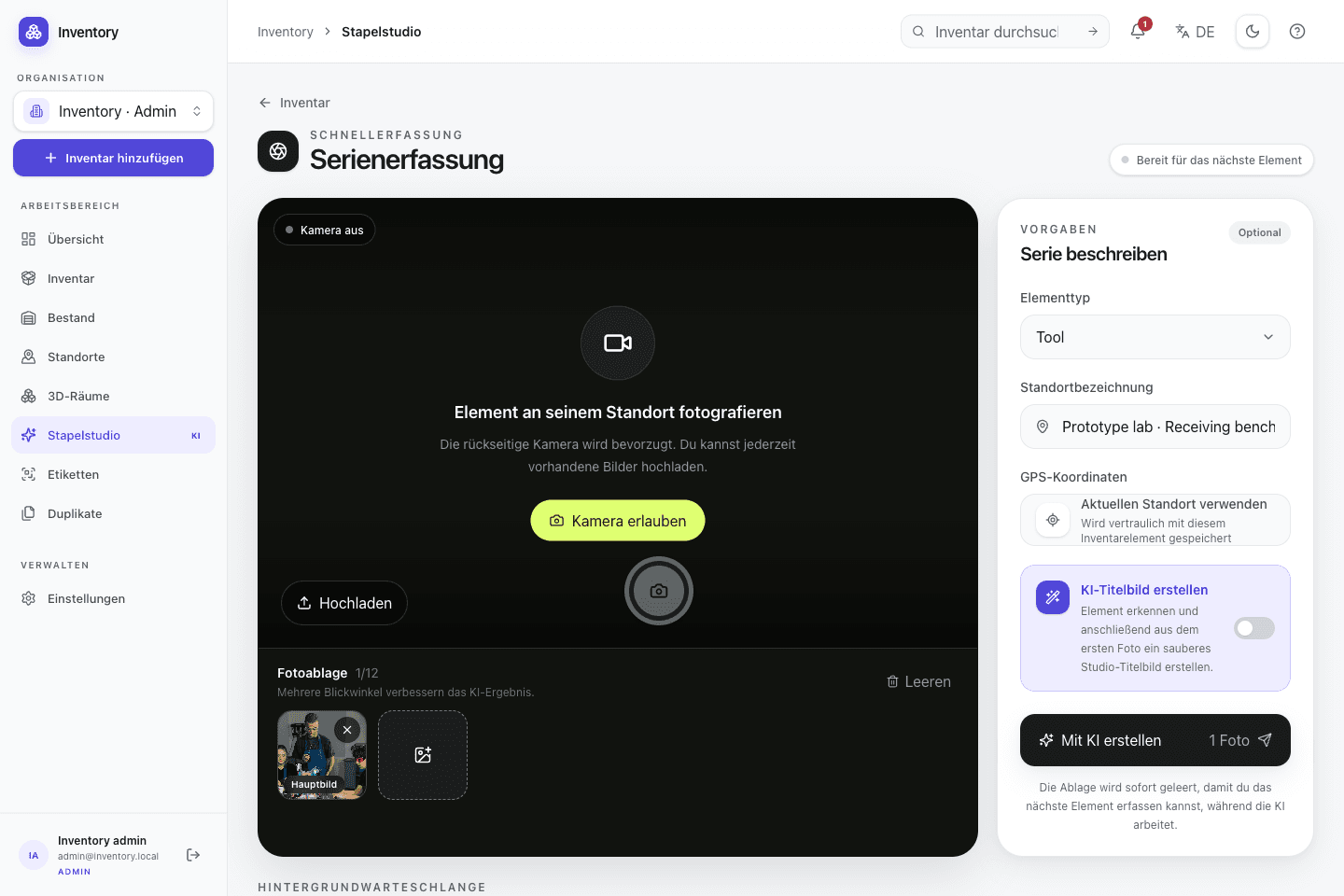
Set location and type once. Each capture becomes a queued job; upload, analysis, and cover stages continue while you photograph the next object.
Open Inventory
Technical notes · MIT licensed
Summary
- Shared fields are reused for every item in a batch
- Resource, media, analysis, and cover work run as separate stages
- Stable idempotency keys prevent duplicates during defined retries
Actual app capture
Batch capture in the running web app
The actual bottleneck
Which inputs can be reused across a batch
During a capture run, repeated context switches cost more time than entering one text field. Type and location often stay unchanged within a shelf or room. The batch workflow therefore lets you set those values once and carry them into subsequent captures.
The client creates a separate job for every item. The server creates the inventory resource first and attaches media afterwards. Analysis and cover generation are optional, independent stages. A cover failure therefore does not need to discard photos that have already been uploaded.
“Inventory in seconds, not hours” describes the target for capture work on site; it is not a published benchmark. Processing can continue afterwards. Total duration and throughput depend on network conditions, server capacity, image size, and any enabled external services.
Execution
The queue in five stages
- 01
Set the batch context
Choose shared values such as type “Tool” and location “Workshop · Shelf B2”. Cover generation and analysis remain optional.
- 02
Prepare captures locally
Take one primary photo and add other angles when needed. Model numbers and rating plates should be separate, sharp images.
- 03
Create the resource and media
The client creates the inventory record and then uploads its images. Both stages have their own progress and error states.
- 04
Let the queue keep working
Start the next capture while earlier jobs continue. Defined retries reuse stable operation IDs and server-side idempotency keys.
- 05
Review the result
Check the name, tracking mode, location, and images. A usable photo does not replace serial numbers or required custom fields.
Browser and iPhone
Comparing the web client and iOS app
The web client combines the browser camera with existing files, which works well on a laptop or tablet at a workbench. The native SwiftUI app uses AVFoundation directly and adds code scanning and RoomPlan paths.
On iOS, photos and stage status are persisted in a server-bound outbox under Application Support. After a restart, the app checks the last confirmed stage and continues there. This is not offline synchronization for the complete data model; it is a persistent upload queue.
- Browser camera access requires HTTPS or localhost; existing photos can be uploaded instead.
- The native app needs network access to your self-hosted server. Public connections should use HTTPS.
- Optional AI stages leave your server: analysis uses OpenAI, covers can use OpenAI or Google, and photo counting can use Replicate.
- Barcode recognition does not replace review when several items share one code or have no code at all.
After capture
Review fields and images after processing
The queue first produces an editable record. You still need to verify that location, tracking mode, quantity, and images match the physical object. Serial numbers and safety-relevant information should never be accepted from a model proposal without review.
The complete path lives in the MIT-licensed repository: web client, REST routes, and SwiftUI outbox are open source. Queue behavior and data flow can be inspected directly in code and changed where necessary.
Further reading
From the article to the implementation
Browse features
Batch capture, media, locations, and stock in one overview
Family use case
Basements, shared belongings, and household inventory without spreadsheets
Explore the iOS app
Native camera, scanners, and the persistent mobile queue
Project on GitHub
Read and contribute to the MIT-licensed source