QR labels in a makerspace: links, layout, and scan workflows
A resource label contains a compact link under /r/{code}. Layout, material, and the scan workflow determine whether it works in a workshop.
Open Inventory
Technical notes · MIT licensed

Summary
- Resource links use short codes under
/r/{code} - A resource label and an executable scan workflow are separate concepts
- Print size, contrast, material, and scan distance need physical testing
Actual app capture
QR and Code 128 in the actual label designer
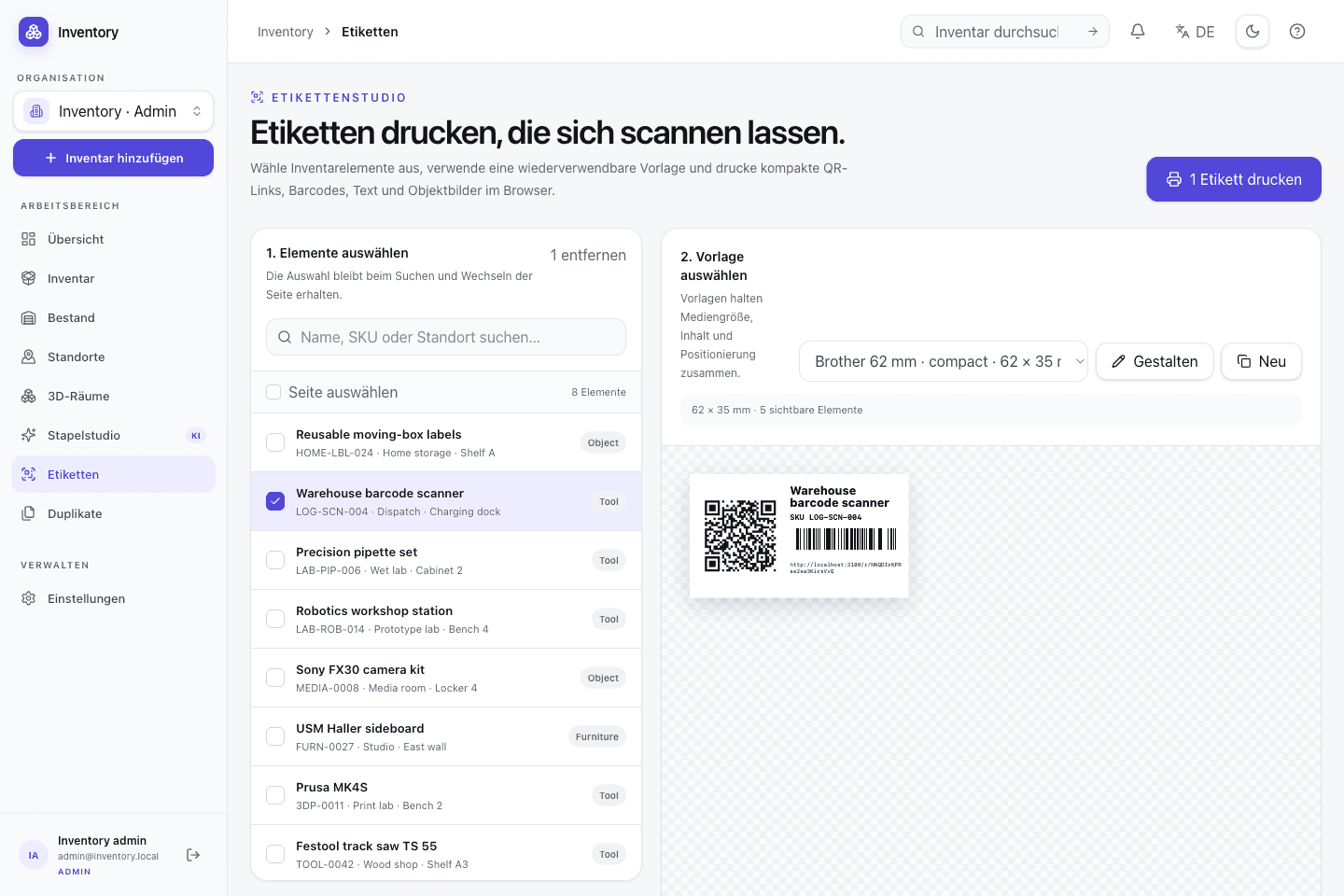
Before printing
What the resource QR code contains
lib/resource-short-link.ts derives a short code from the resource UUID. The label encodes a URL under /r/{code}. That route resolves the code back to the UUID on the server and redirects to the record.
The short link does not bypass access control. Without a valid session, the browser first opens sign-in and returns to the inventory record afterwards. Name, identifier, and location should still appear as readable text on the label.
The label designer can place a QR code, image, name, identifier, Code 128, URL, and location. Dimensions are stored in millimeters. Presets are starting points; browser, printer driver, and physical medium remain part of the output path.
Workshop workflow
Run a pilot with real tools
- 01
Define locations and permissions
Create rooms, cabinets, and shelves as locations. Check separately who may edit records, manage label setups, and book stock.
- 02
Inventory a pilot group
Start with a manageable set such as handheld power tools. Use serialized units for individually tracked equipment and bulk stock for interchangeable consumables.
- 03
Build the layout in millimeters
Print the name, short identifier, location, and a sufficiently large QR code. Avoid decorative elements that do not improve readability or durability.
- 04
Test print and scan
Scan from a normal working distance, under workshop lighting, and with a label that is no longer pristine. Also test sign-in, the mobile view, and the route back to the shelf.
- 05
Version and reuse the setup
Adjust template and attachment method after the pilot. Saved setups carry a revision so concurrent changes cannot silently overwrite each other.
Two scan paths
Resource links and scan execution are separate
A resource label only opens an existing record. Configurable scan workflows are a separate path: they read external codes, extract a relevant value, and can update a serialized unit after showing a preview.
Before mutation, the server returns the target and a diff. Execution uses an idempotency key and runs in one transaction with the stock movement and audit entry. A stale preview must be reloaded. For a simple checkout, opening the record may still be the shorter path.
- The visual browser scanner requires HTTPS or localhost plus camera permission.
- Alternatively, upload a QR photo or paste the decoded content.
- A scan workflow currently operates on serialized inventory because it identifies one concrete unit.
- Test external codes with physical examples first; not every printed code contains a stable unique identifier.
Physical constraints
Printer and label material are part of the system
Dust, oil, abrasion, curved surfaces, and metal affect label lifetime. Clean the surface, choose material that matches it, and place the code away from normal grip areas. A tag may work better than an adhesive label on small, hot, or heavily used tools.
The browser opens the system print dialog. A network printer must therefore be configured in the operating system, the correct media size selected, and page scaling disabled. Open Inventory can prepare print content; it cannot correct mechanical printer faults or unsuitable consumables.
Open Inventory is MIT licensed and open source. With local storage, the application, PostgreSQL, and uploads run on your infrastructure. Configuring Openinary or optional AI providers introduces additional external data paths, which belong in the makerspace operating documentation.
Further reading